# Quick View

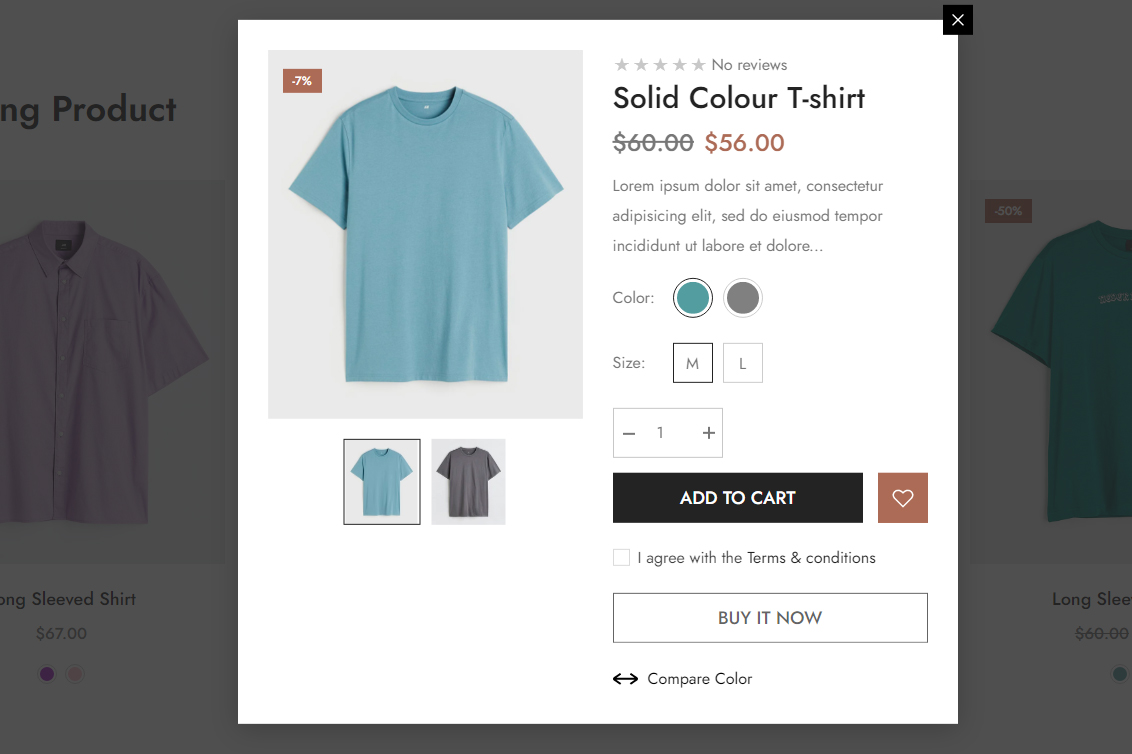
**Quick View** allows your customers to see more details about a product and add it to their cart without having to go to the individual product page, leading to a more fluid checkout flow.

{% hint style="success" %}
**Steps:**

1. From your Shopify admin, go to **Online Store -> Themes**.
2. Find the theme that you want to edit, and then click **Customize**.
3. Click **Theme settings -> Quick View**.
   {% endhint %}

<figure><img src="https://37978293-files.gitbook.io/~/files/v0/b/gitbook-x-prod.appspot.com/o/spaces%2FLecf8X9sGrNZbKHL03Ev%2Fuploads%2FLTPgb7AKzJjJ8VOVN3ZM%2Fscreenshort-119.jpg?alt=media&#x26;token=2585c9d7-fb17-4203-8a87-54816aee670f" alt=""><figcaption></figcaption></figure>

**Thumbnails**

<table><thead><tr><th width="318">Settings</th><th>Meaning</th></tr></thead><tbody><tr><td>Layout</td><td>Select the layout for the quick view popup content.<br><br><strong>Show thumbnails on the left</strong><br><strong>Show thumbnails on the right</strong><br><strong>Show thumbnails on the bottom</strong><br><strong>Hide thumbnails</strong></td></tr><tr><td>MaMaximum thumbnails to show</td><td>Determine the number of thumbnail to visible at a time in the thumbnail slider.</td></tr></tbody></table>

**Badge**

<table><thead><tr><th width="323">Settings</th><th width="374">Meaning</th></tr></thead><tbody><tr><td>Show product badges</td><td>Enable the product badges in the quick view.</td></tr></tbody></table>

**Title**

<table><thead><tr><th width="327">Settings</th><th width="374">Meaning</th></tr></thead><tbody><tr><td>Font size</td><td>Set the font size of the title.</td></tr><tr><td>Title color</td><td>Set the text color of the title.</td></tr><tr><td>Show zoomed image</td><td>Enable the zoom functionaly of the main image.</td></tr></tbody></table>

**Short description**

<table><thead><tr><th width="330">Settings</th><th width="374">Meaning</th></tr></thead><tbody><tr><td>Show short description</td><td>Enable the short description in the quick view.</td></tr><tr><td>Short description word count</td><td>Set maximum number of words for the short description.</td></tr></tbody></table>

**Price**

<table><thead><tr><th width="337">Settings</th><th width="374">Meaning</th></tr></thead><tbody><tr><td>Font size</td><td>Set the font size of the price.</td></tr></tbody></table>

**Variant**

<table><thead><tr><th width="340">Settings</th><th width="374">Meaning</th></tr></thead><tbody><tr><td>Type</td><td>Select the type for the product variant in the quick view:<br><br><strong>Dropdown</strong> <br><strong>Square / Rectangle / Swatch</strong></td></tr><tr><td>Show variant image grouped</td><td>Enable the variant image grouped functionality in the quick view.</td></tr></tbody></table>

**Quantity**

<table><thead><tr><th width="346">Settings</th><th width="374">Meaning</th></tr></thead><tbody><tr><td>Show quantity</td><td>Enable the quantity in the quick view.</td></tr></tbody></table>

**Size chart**

<table><thead><tr><th width="351">Settings</th><th width="374">Meaning</th></tr></thead><tbody><tr><td>Show size chart</td><td>Enable the size chart in the quick view.</td></tr><tr><td>Use different size charts for products by criteria</td><td><p>There are 5 options for the size chart:<br></p><p><strong>Product type</strong> <br><strong>Product vendor</strong> <br><strong>Metafield</strong> <br><strong>Custom image</strong></p></td></tr><tr><td>Image type</td><td>Select the image format to display the size chart (only for the product type or product vendor option) <br><strong>Use image with PNG format</strong> <br><strong>Use image with JPG format</strong></td></tr><tr><td>Image</td><td>Select an image to display the size chart (only for the custom image option)</td></tr></tbody></table>

**Compare color**

<table><thead><tr><th width="357">Settings</th><th width="374">Meaning</th></tr></thead><tbody><tr><td>Show comparison color</td><td>Enable the comparison color functionality in the quick view.</td></tr><tr><td>Enable drag &#x26; drop on desktop</td><td>Enable the drag &#x26; drop in the quick view on the desktop.</td></tr></tbody></table>

**Dynamic checkout buttons**

<table><thead><tr><th width="361">Settings</th><th width="374">Meaning</th></tr></thead><tbody><tr><td>Show dynamic checkout buttons</td><td>Enable the dynamic checkout buttons in the quick view.</td></tr></tbody></table>
