> For the complete documentation index, see [llms.txt](https://templatescoder.gitbook.io/labacha-shopify-theme-documentation/llms.txt). Markdown versions of documentation pages are available by appending `.md` to page URLs; this page is available as [Markdown](https://templatescoder.gitbook.io/labacha-shopify-theme-documentation/basic-configuration/navigation.md).
# Navigation
Your online store has two default menus that appear on every page: the main menu and the footer menu. You can [add, remove, or edit menu items](https://help.shopify.com/manual/sell-online/online-store/menus-and-links/editing-menus) in your online store's default menus.
### Main Menu
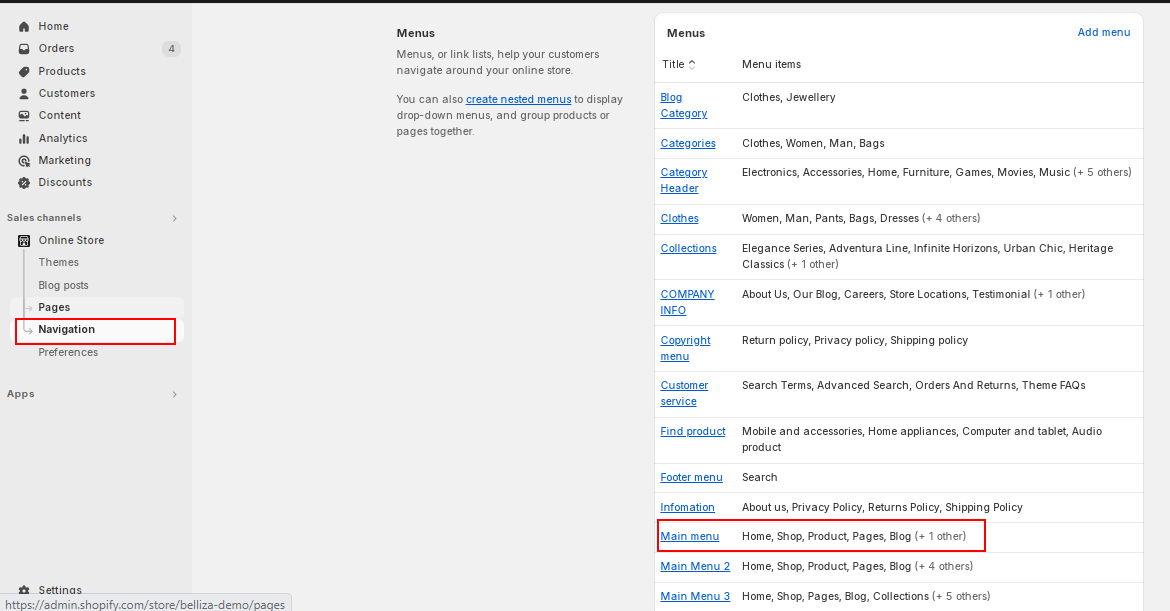
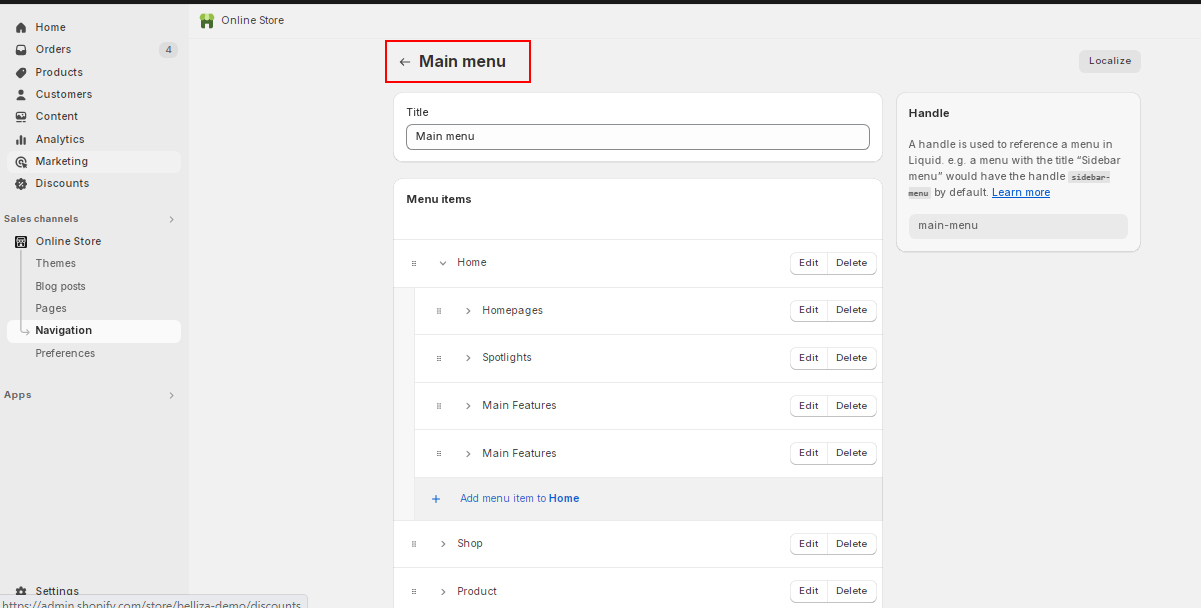
The main menu appears on the header of all pages:
{% hint style="success" %}
**Steps:**
1. From your shopify store admin -> Click **Online Store** ->[ **Navigation**](https://shopify.com/admin/admin/menus) ->
2. Click **Add menu** -> Add "Title", then click "**add menu item**"
3. Enter **Name**, **Link** and click **Add**
4. Likewise, add all menu items and click Save.
{% endhint %}
{% hint style="info" %}
In most cases, you need to create an item before you can link to it. For example, you need to [create a collection](https://help.shopify.com/en/manual/products/collections) before you can add it to a menu.
{% endhint %}
{% hint style="info" %}
You can view and change your online store navigation from the [Navigation](https://www.shopify.com/admin/menus) page in your Shopify admin. For more information, see [Set up drop-down menus in your online store](https://help.shopify.com/en/manual/online-store/menus-and-links/drop-down-menus)
{% endhint %}
{% hint style="info" %}
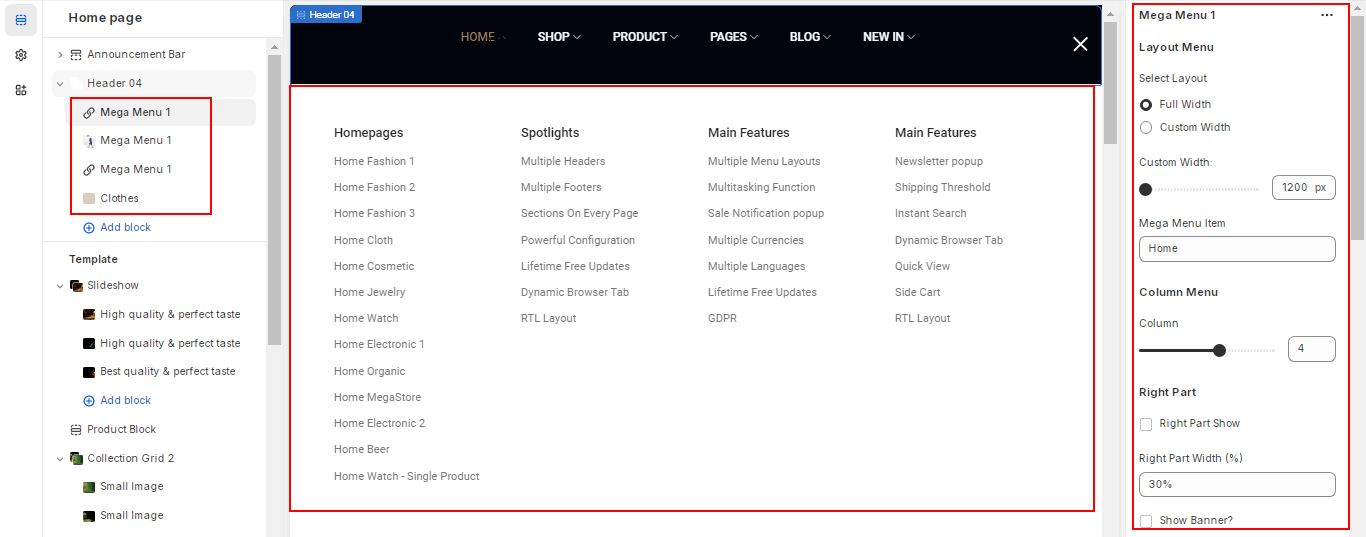
You can setup Menu with [Dropdown or Mega Menu](/labacha-shopify-theme-documentation/header/megamenu-drop-down-menu.md) layout.
{% endhint %}
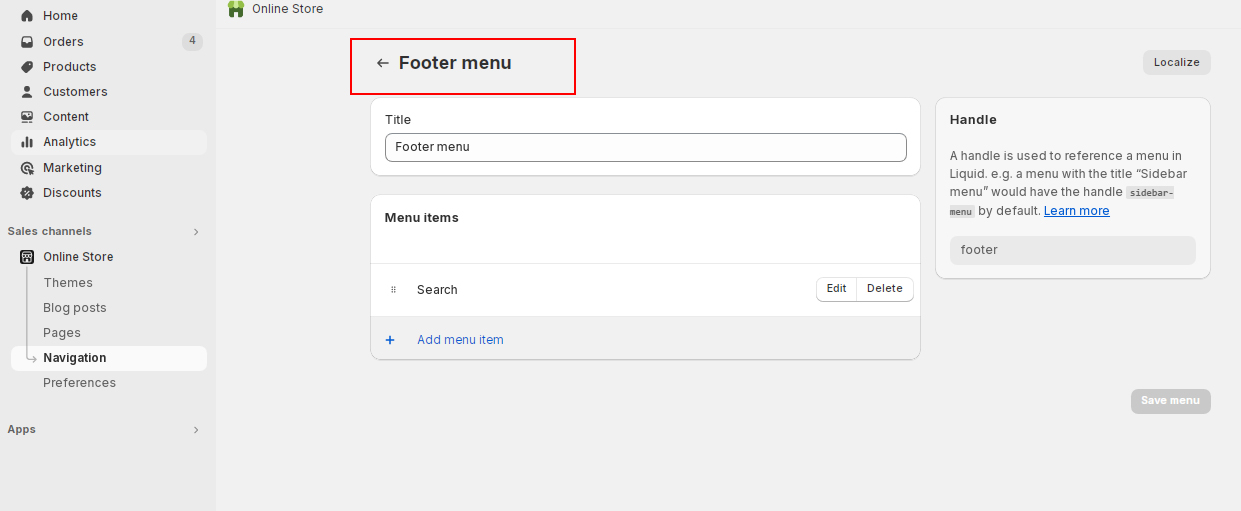
### Footer Menu
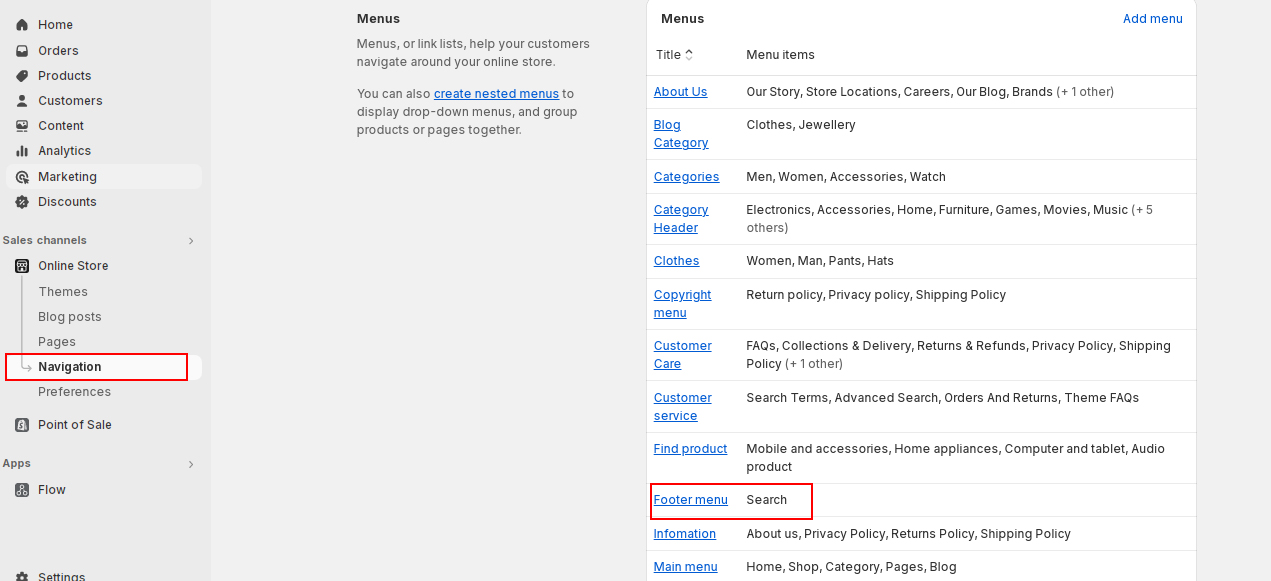
The footer menu is usually displayed as items across the width of the footer. A customer will probably look at your footer menu to find information about your store policies and contact information.